
Spot Evil Twin Wi-Fi Attacks: Signs You Miss and How to React
Evil twin attacks succeed because they mimic trusted networks, causing your device to connect automatically before you notice the subtle security certificate mismatches.
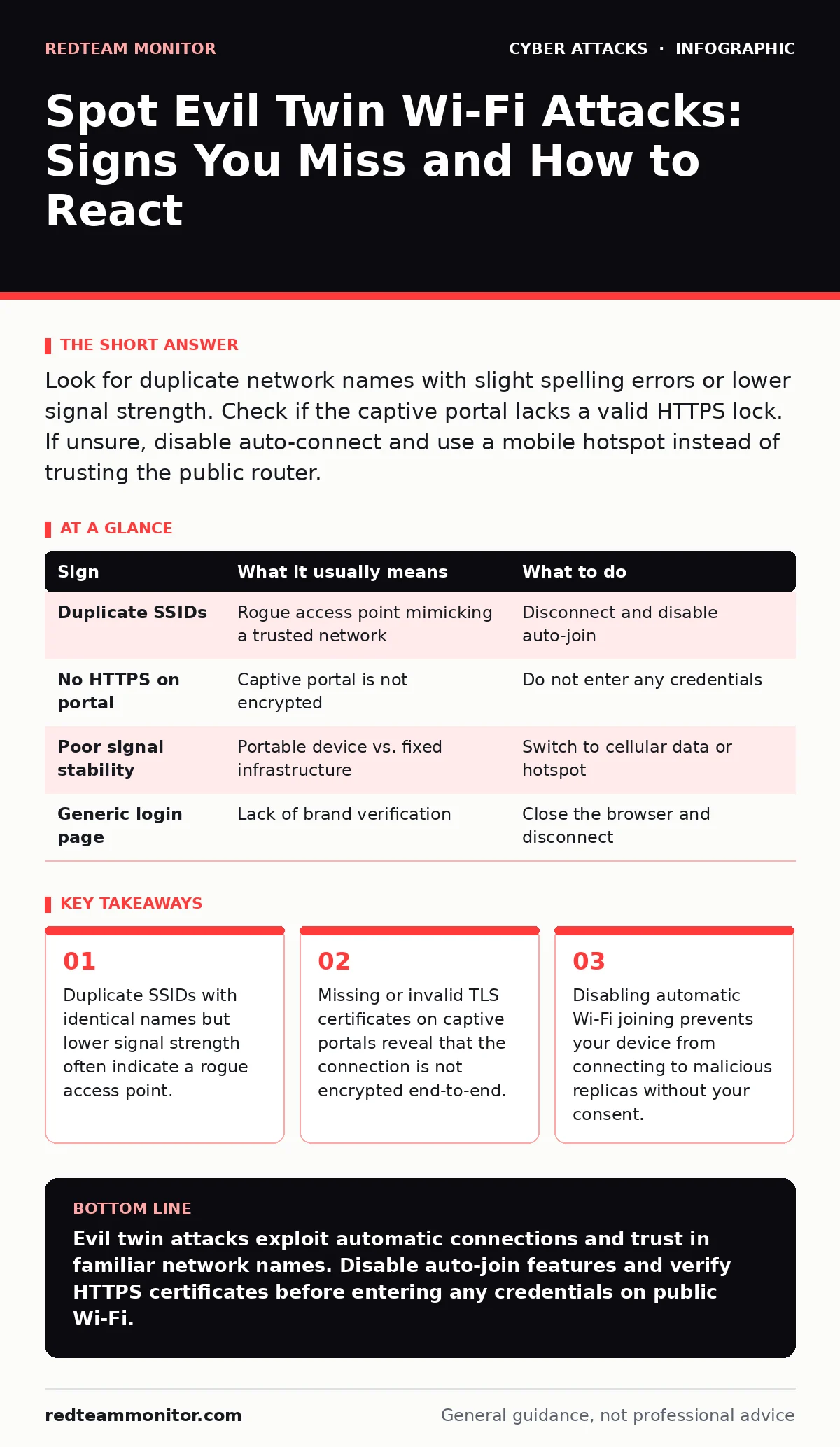
Look for duplicate network names with slight spelling errors or lower signal strength. Check if the captive portal lacks a valid HTTPS lock. If unsure, disable auto-connect and use a mobile hotspot instead of trusting the public router.
The Decoy Network Setup
An evil twin attack relies on a rogue access point that broadcasts the same Service Set Identifier, or SSID, as a legitimate network. You see two networks with the exact same name, such as "CoffeeShop_WiFi." The attacker’s device sits closer to you, offering a stronger signal. Your operating system prioritizes the stronger signal, connecting you to the trap before you can choose the legitimate router.
This mechanism exploits the convenience features built into modern devices. Most smartphones and laptops are configured to remember known networks and join them automatically. The attacker does not need to guess your password. They simply wait for your device to hand over its connection details. The goal is often to intercept unencrypted traffic or to serve malicious pages during the login process.
First Signs: The Obvious Clues
The most visible warning sign is the presence of duplicate network names. If you scan for Wi-Fi and see "Hotel_Guest" listed twice, pause. Check the signal strength bars. The legitimate router is usually fixed in a central location, while the rogue device is portable. The rogue signal may fluctuate more rapidly as the attacker moves.
Another obvious clue is the captive portal page. Legitimate public networks usually present a branded login page. If the page looks generic, has poor formatting, or asks for more information than usual, it is suspicious. The page might request your corporate credentials or social media passwords under the guise of "network registration." This is a direct attempt to harvest your login details.
Hidden Signs: What You Overlook
More subtle indicators involve the underlying security protocols. Even if the Wi-Fi connection itself is encrypted, the data you send over it might not be. Many users assume that seeing a lock icon in their browser means the entire connection is safe. This is incorrect. The lock only verifies the connection between your browser and the specific website server, not the Wi-Fi network itself.
A critical hidden sign is the absence of a valid Transport Layer Security certificate on the captive portal. When you connect to public Wi-Fi, you are often redirected to a login page. If that page uses HTTP instead of HTTPS, or if the browser warns of an invalid certificate, the network is not trustworthy. Attackers often strip encryption to read your traffic in plain text.
Another overlooked sign is unexpected network behavior. If your device connects but cannot reach the internet, or if DNS queries fail, the rogue network might be intercepting your requests. The attacker may be performing a DNS hijack, redirecting you to fake versions of real websites. This aligns with the tactics seen in brand impersonation attacks, where the visual identity is copied to deceive the user.
Immediate Response Actions
When you suspect an evil twin, disconnect immediately. Do not attempt to log in or browse. Turn off Wi-Fi on your device and switch to cellular data if available. This stops the flow of data to the rogue access point. If you must stay connected, use a mobile hotspot. Your carrier’s network is generally more secure than an open public Wi-Fi network.
Check your device settings for automatic connections. Disable the feature that allows your device to join known networks automatically. This forces you to manually select the network each time, giving you a chance to inspect the SSID and signal strength. This simple change reduces the risk of connecting to a rogue device while traveling.
| Sign | What it usually means | What to do |
|---|---|---|
| Duplicate SSIDs | Rogue access point mimicking a trusted network | Disconnect and disable auto-join |
| No HTTPS on portal | Captive portal is not encrypted | Do not enter any credentials |
| Poor signal stability | Portable device vs. fixed infrastructure | Switch to cellular data or hotspot |
| Generic login page | Lack of brand verification | Close the browser and disconnect |
Preventing Future Exposure
Long-term protection requires changing how your device interacts with wireless networks. Use a Virtual Private Network, or VPN, when connecting to public Wi-Fi. A VPN encrypts your traffic between your device and a remote server, making it difficult for attackers to read your data even if they control the local network. However, a VPN does not protect you from phishing attempts on the captive portal.
Consider using phishing-resistant authentication methods for your critical accounts. If an attacker captures your password via an evil twin, they cannot use it if your account requires a hardware security key or a similar strong second factor. This adds a layer of defense that password theft alone cannot bypass.
Regularly review the list of saved Wi-Fi networks on your devices. Remove networks you no longer use. This reduces the number of networks your device will try to join automatically. It also cleans up your device’s memory of potential targets.
The Limits of Detection
You cannot always distinguish an evil twin from a legitimate network by sight alone. Advanced attackers can mimic the exact configuration of a legitimate router, including the MAC address and security settings. In these cases, the only reliable indicator is the behavior of the network, such as unexpected redirects or certificate warnings.
Firewalls can block some malicious traffic, but they cannot prevent your device from connecting to a rogue access point. The connection happens at the network layer, before the firewall can inspect the content. Therefore, relying solely on perimeter defenses is insufficient. You must manage the endpoint behavior.
Maintaining Awareness
Stay alert to changes in your network environment. If your device connects to a network you do not recognize, or if the connection drops and reconnects frequently, investigate. These behaviors can indicate an active attack or a misconfigured network.
Educate yourself on the basics of network security. Understanding how SSIDs and encryption work helps you spot anomalies. This knowledge is as valuable as any technical tool. It allows you to make informed decisions about when to connect and when to stay off the network.
Key takeaways
- Duplicate SSIDs with identical names but lower signal strength often indicate a rogue access point.
- Missing or invalid TLS certificates on captive portals reveal that the connection is not encrypted end-to-end.
- Disabling automatic Wi-Fi joining prevents your device from connecting to malicious replicas without your consent.
Evil twin attacks exploit automatic connections and trust in familiar network names. Disable auto-join features and verify HTTPS certificates before entering any credentials on public Wi-Fi.
Frequently asked questions
Can a VPN stop an evil twin attack?
A VPN encrypts your data, making it harder to read, but it does not prevent your device from connecting to the rogue network or protect you from phishing pages.
Why does my phone connect to the wrong network?
Your device prioritizes signal strength. If the rogue device is closer, your phone will connect to it first, assuming it is the legitimate network.
Is WPA2 security enough to prevent evil twins?
No. An evil twin can use the same security protocol. The attack relies on social engineering and proximity, not on breaking the encryption.
Should I turn off Wi-Fi when not in use?
Yes. Disabling Wi-Fi prevents your device from scanning for and connecting to rogue networks, reducing your exposure to these attacks.
How this guide was produced: written by the RedTeam Monitor editorial team with AI assistance, checked against the public references listed below, and reviewed when the facts change. See our editorial policy or report an error.