How to Remove Scareware: Immediate Steps to Clear Fake Alerts
Scareware relies on psychological pressure rather than deep system access, meaning immediate isolation stops the damage before technical removal begins.
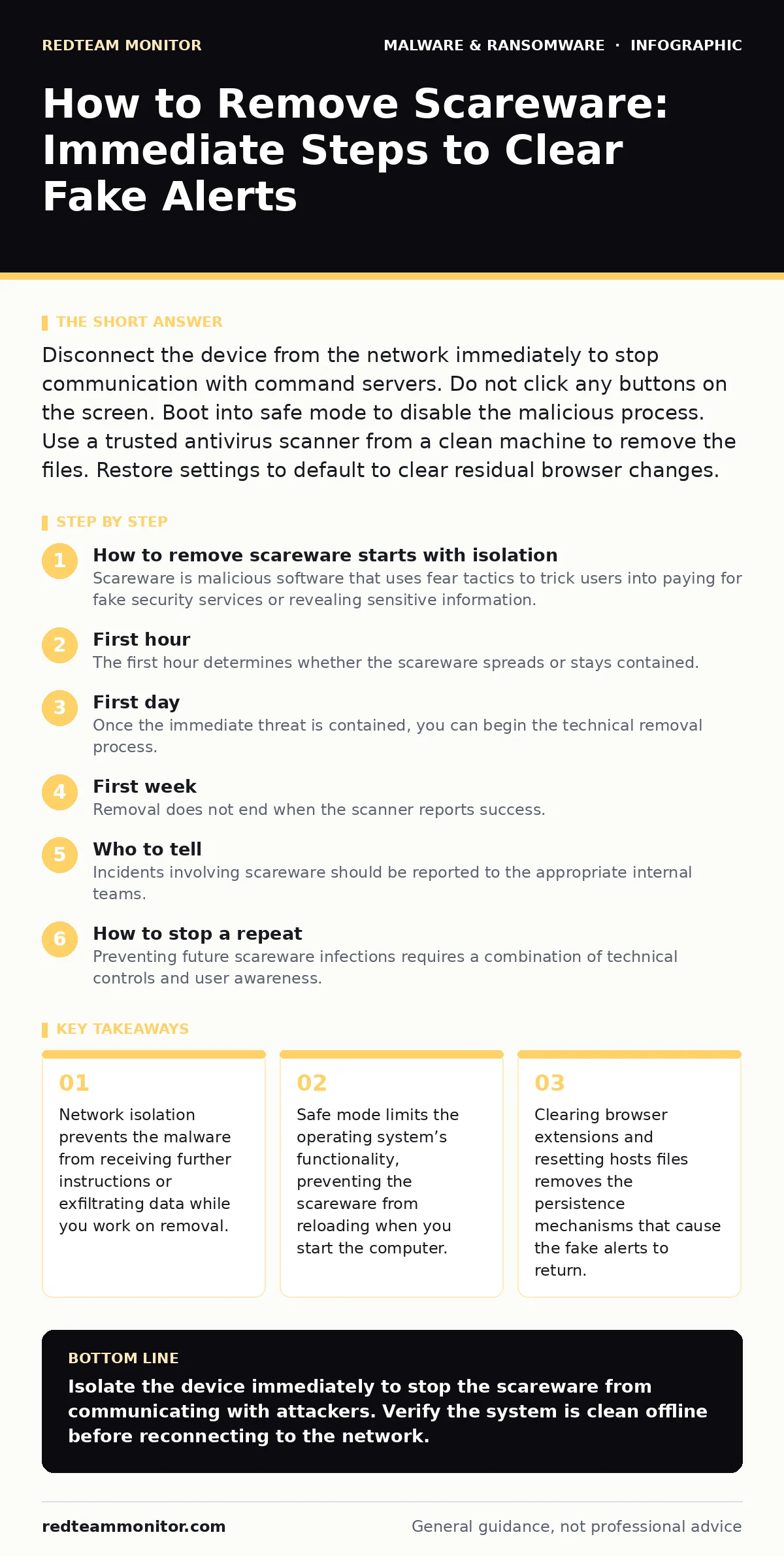
Disconnect the device from the network immediately to stop communication with command servers. Do not click any buttons on the screen. Boot into safe mode to disable the malicious process. Use a trusted antivirus scanner from a clean machine to remove the files. Restore settings to default to clear residual browser changes.
How to remove scareware starts with isolation
Scareware is malicious software that uses fear tactics to trick users into paying for fake security services or revealing sensitive information. The screen fills with urgent warnings about viruses that do not exist. The goal is panic, not immediate system destruction. You must act calmly to avoid triggering the software’s secondary payloads.
The first step is to cut the connection. Scareware often communicates with remote servers to verify payment or download additional tools. Keeping the device online allows the attacker to maintain control. Disconnecting the network stops this flow. It gives you the time needed to assess the situation without feeding the malware more resources.
First hour
The first hour determines whether the scareware spreads or stays contained. You need to act quickly but deliberately. Rushing leads to mistakes that compromise your data. Follow this checklist to secure the environment.
- Unplug the Ethernet cable or turn off Wi-Fi on the infected device.
- Shut down the device if the screen is unresponsive or flashing aggressively.
- Identify the type of scareware by noting the URL or error code displayed.
- Gather a clean device to access documentation and download removal tools.
- Document the symptoms for later analysis and reporting.
If the device is part of a larger network, check other endpoints for similar behavior. Scareware can sometimes act as a downloader for computer worms that spread automatically. Isolating the infected machine prevents lateral movement. Do not assume the infection is limited to one screen. Verify the status of connected devices before proceeding with removal.
First day
Once the immediate threat is contained, you can begin the technical removal process. You cannot rely on the infected device to clean itself. The operating system may be compromised at a level that allows the malware to hide. You need a trusted environment to perform the cleanup.
Boot the infected device into safe mode. This starts the operating system with only essential drivers and services. Most scareware requires specific background processes to run. Safe mode prevents these processes from loading. This gives you a window to remove the malicious files without interference.
Use a reputable antivirus scanner to perform a full system scan. Do not use the same software that triggered the scareware alert. That software is likely fake or compromised. Download the scanner on a clean machine, transfer it via a USB drive, and run it on the infected device. This ensures the removal tool itself is not infected.
Check for browser extensions and plugins. Scareware often installs browser hijackers to redirect traffic. Remove any extensions you do not recognize. Reset browser settings to default to clear hidden configurations. This stops the fake alerts from reappearing when you open the web browser.
First week
Removal does not end when the scanner reports success. Scareware often leaves behind residual files and registry entries. These remnants can restore the malware if not cleaned thoroughly. You must verify the system’s integrity before returning it to normal use.
Review the system’s startup programs. Look for any entries that match the scareware’s name or appear suspicious. Disable any unknown programs that launch at boot. This prevents the malware from restarting after a reboot. Check the hosts file for any unusual entries that redirect traffic to malicious domains. Restore the hosts file to its default state if you find modifications.
Analyze the incident to understand how the scareware entered the system. Did it come from a malicious mobile app or a deceptive download link? Understanding the entry point helps you close the gap. You may need to update your endpoint detection and response (EDR) policies to catch similar threats in the future.
Who to tell
Incidents involving scareware should be reported to the appropriate internal teams. If you are in a corporate environment, notify the security operations team. They can assess the risk to the broader network. They may need to block the associated domains across the entire organization.
If the scareware requested payment information, contact your financial institution. They can monitor for fraudulent transactions. If you entered credentials into a fake login screen, change those passwords immediately. Assume the credentials are compromised. This applies to email, banking, and other sensitive accounts.
Document the incident for future reference. Include the timeline, the type of scareware, and the steps taken to remove it. This documentation helps improve your organization’s response to future threats. It also provides data for refining your business continuity planning procedures.
How to stop a repeat
Preventing future scareware infections requires a combination of technical controls and user awareness. Technical controls include keeping software updated and using reputable security tools. User awareness involves training staff to recognize the signs of social engineering.
Scareware relies on urgency and fear. Users who understand this tactic are less likely to fall for it. Train users to ignore unsolicited security warnings. Teach them to verify alerts through official channels. This reduces the effectiveness of the psychological manipulation.
Implement application whitelisting to prevent unauthorized software from running. This stops scareware from executing even if it is downloaded. Combine this with regular security audits to identify and remove potential vulnerabilities. A layered defense strategy reduces the risk of successful infections.
Recovery and verification
After removal, restore any data that was affected. Use backups from before the infection date. Verify that the restored data is clean. Running a backup from an infected period can reintroduce the malware. Always scan restored files before integrating them into the active system.
Monitor the device for several days after removal. Look for any return of symptoms or unusual behavior. This period is critical for detecting persistent threats that survived the initial cleanup. If symptoms return, repeat the removal process or consider reimaging the device.
Reimage the device if you cannot confirm complete removal. This is the most reliable way to ensure the system is clean. It involves wiping the drive and reinstalling the operating system. While time-consuming, it eliminates any hidden threats. This is especially important for critical systems.
Key takeaways
- Network isolation prevents the malware from receiving further instructions or exfiltrating data while you work on removal.
- Safe mode limits the operating system’s functionality, preventing the scareware from reloading when you start the computer.
- Clearing browser extensions and resetting hosts files removes the persistence mechanisms that cause the fake alerts to return.
Isolate the device immediately to stop the scareware from communicating with attackers. Verify the system is clean offline before reconnecting to the network.
Frequently asked questions
Can scareware steal my passwords?
Yes, if it includes a keylogger or tricks you into entering credentials on a fake page. Always change passwords after an incident.
Is safe mode enough to remove scareware?
Safe mode helps by disabling background processes, but you still need a reputable scanner to delete the malicious files and registry entries.
How do I know if the scareware is gone?
Look for the absence of fake alerts and check system resources for unusual activity. A full scan from a clean tool confirms removal.
Should I pay the scareware ransom?
No, paying does not guarantee removal and encourages further attacks. Focus on technical removal and system restoration instead.
How this guide was produced: written by the RedTeam Monitor editorial team with AI assistance, checked against the public references listed below, and reviewed when the facts change. See our editorial policy or report an error.